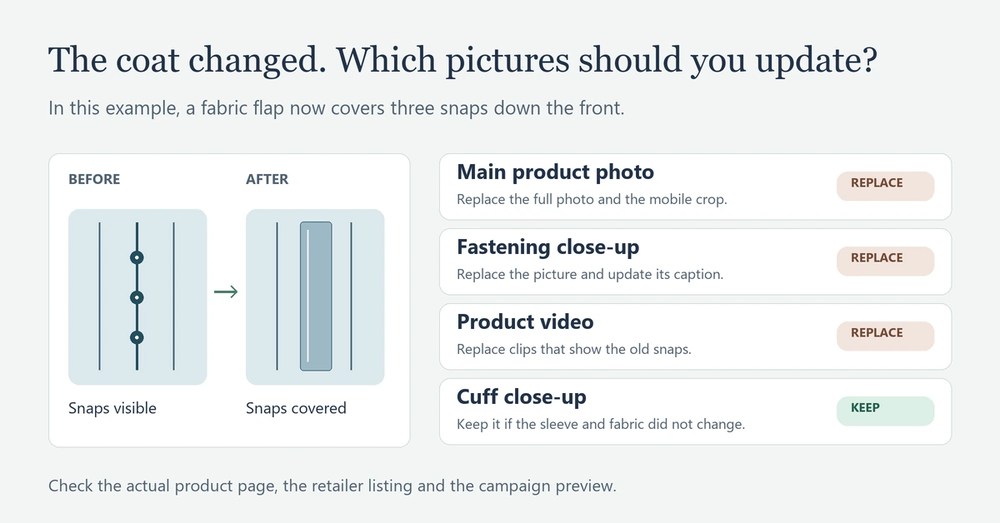
Suppose your team approves a change to a coat. A flap now covers the three snaps down the front. Update the main product image, the close-up of the fastening and any video that still shows the exposed snaps. You can keep the cuff close-up if the cuff and fabric visible in that shot are unchanged.
Use the same test on each picture or clip. If it still shows the old design, replace it. If the picture is fine but its caption describes the old design, change the caption. If you cannot tell what version it shows, ask the design team before using it. Then check the places where shoppers actually see those files.
Which images and videos need replacing?
In this example, the coat keeps the same fabric, cuffs and back. The only approved change is at the front opening. The four examples show how that decision plays out in files a shopper might see.
| What shoppers see | What to check | What to do |
|---|---|---|
| Main product image, including the mobile crop | The angled view shows two of the exposed snaps. The phone image uses a tighter crop of that view. | Make a new main image and crop it again for mobile. Check both displayed versions. |
| Close-up of the front fastening | The picture shows the old snaps and its caption describes them. | Replace the picture and update the caption to describe the covered fastening. |
| Rotating product video and the retailer’s shorter version | Both clips show the old front when the coat turns. The retailer may use a separate still image before playback. | Replace the affected clips and check the image shown before the video plays. |
| Cuff close-up | Only the sleeve and cuff are visible. The design team confirms the shape and fabric in the picture are unchanged. | Keep that picture for the cuff detail and record why it can still be used. |
The same change affects the main images, the front detail and the videos, while the cuff picture can stay. Review the final image at the size and angle shoppers see. A snap that barely shows in a wide image may be easy to spot in a tighter crop.
Confirm what the new front should look like
Ask the design or product development team for a front view of the approved version and a short note naming the change. For this coat, the note can read “Fabric flap covers the front snaps when fastened.” Ask for an open view too if a styling shot or clip shows the coat worn open. The flap can turn away from the body, making its underside or part of the fastening visible.
Use those views to judge the images. If the new front looks smooth in the main render but the flap appears on the wrong side in a video, send that frame back for correction before replacing the site version. For a picture you want to keep, ask whether the area visible in that picture changed. Record the answer against the specific image so a future editor knows what was checked. A picture approval covers what is shown. Fit and construction approvals sit with product development.
Find the old picture on the store, retailer pages and campaigns
Open the product page on a phone and on a desktop. Check the main picture on both. On a phone the crop could put the old snaps right in the center. Then open the retailer’s listing and any scheduled email that features the coat. They may use copies. A change in the store gallery updates only the places that pull from that gallery.
Check the final pictures as well as the folder. Two retailer thumbnails can look identical even if one was cropped from the old main image and the other was made as a separate render. Open each thumbnail. If both show the exposed snaps, both need new artwork, and the second thumbnail must be replaced through its own listing or product feed. Give a retailer that manages its own listing the new image, an appropriate crop and the product code needed to find the listing.
Give each picture one line on the update list. For example, “Navy coat front close-up. Replace on the online store and the retailer listing. Priya on marketing checks after the retailer’s next update.” Use your own owner’s name. The Style3D guide to tracking digital garment images also recommends recording which garment version produced the picture and how the image should be used. That helps when someone has to find the right file again.
Check different views for a new color or a back seam change
If the navy fabric color changes, check every image representing the navy coat, including the back and cuff close-ups you could keep after the fastening change. A photograph of a separately approved cream coat can stay. Check a cream-led collection tile if it shows a small navy swatch or a second picture of the navy coat. A color correction can affect those supporting images even when the main garment in the composition is another color.
If the only change is a seam across the back, start with rear views and clips where the model turns. A straight-on front image can stay if the shoulders, neckline, fabric and visible shape still match. Check the edge of any angled front shot you plan to keep. The turned shoulder might still reveal part of the old seam. Any later crop that includes more of the back needs its own check.
Make the replacement match the rest of the product page
Use the approved coat to make the new images. For a 3D render, start with the saved camera angle, crop and lighting so the new main picture sits naturally next to the cuff close-up and other images you are keeping. For the new front detail, choose an angle that clearly shows the flap. Compare the two final exports at their actual display sizes so they show the correct fastening and still look like the same garment.
If the team only has the old photographs and cannot accurately show the new front from a current 3D file, rephotograph the affected views or hold them until the right image is available. Removing the snaps in an old photo would still leave the new flap missing. StyleWork by Style3D describes a platform for design, development, review and marketing content. Use the approved garment and the team’s latest review when briefing the new images, then check the exported files against the approved front.
Verify the replacement where shoppers will see it
Open the desktop and mobile product pages after the change. Look at the main image, swipe through the gallery and play the clip long enough to see the coat turn. Check the caption and the text describing the image if either mentioned the old snaps. For scheduled email or paid creative, open the preview of the actual item that will go out. The file sitting in the shared folder may be newer than the one still attached to the campaign.
Tell the person who updates each retailer listing which images to swap and when to check. If a retailer updates listings overnight, mark that row pending and open the live listing the next morning. Keep the old files in version history if the team needs them. Move them out of the folder where people pick current images so they cannot be selected for the next campaign. Close the update when you can see the accurate product on the store, the retailer listing and the planned campaign.